How Elementary Teachers Can Use Canva: A Complete Guide
Learn how elementary teachers can use Canva to create lesson plans, worksheets, flash cards, presentations, certificates, classroom decorations, and engaging activities with easy step-by-step instructions.
If you’ve ever spent your Saturday morning cutting out laminated letter cards, or stayed up late trying to make a worksheet look “just right” in Word, this guide is for you. Canva for elementary teachers has become one of the most loved tools in classrooms around the world, and once you try it, you’ll understand why.
What Is Canva?
Canva is a free, easy-to-use online design tool. Think of it like digital paper you can decorate however you want except instead of starting from a blank page, Canva gives you thousands of ready-made templates. You simply pick one, change the words and colors, and you’re done. There’s nothing to install, no design degree required, and no expensive software to buy.
Why Teachers Love Canva
Elementary teachers wear a hundred hats every day lesson planner, artist, decorator, printer technician, and cheerleader, all before lunchtime. Canva takes one of those jobs (the “artist” one) and makes it simple. You don’t need to know how to draw, use complicated design software, or spend hours formatting a document. Canva does the heavy lifting so you can focus on teaching.
How Canva Saves Time
Instead of building a worksheet, poster, or slideshow from scratch, you start with a template that’s already beautifully designed. Change a few words, swap a picture, pick your favorite colors, and you have a professional-looking resource in minutes — not hours. Many teachers say tasks that used to take them a full evening now take fifteen minutes.
Why Visual Learning Matters for Young Students
Young children learn best when they can see ideas, not just hear them. Bright colors, friendly characters, and clear pictures help children understand new concepts, stay engaged, and remember what they’ve learned. Canva makes it easy to create this kind of visual learning material the same kind of professional, colorful design you see in published children’s books and educational apps.
What You’ll Learn in This Guide
By the end of this article, you’ll know how to:
- Set up your free Canva for Education account
- Create lesson plans, worksheets, and flash cards
- Design classroom posters, newsletters, and certificates
- Build presentations and even short videos
- Organize your classroom with schedules, labels, and stickers
- Collaborate with other teachers
- Avoid common beginner mistakes
Grab a coffee, and let’s get started.
1. How to Create a Teacher Account in Canva
The very first step is setting up your account, and the good news is that Canva for Education is completely free for verified K-12 teachers. Here’s exactly how to do it.
Step 1: Go to the Canva Website
Open your web browser and go to Canva’s website. You’ll see a big button that says “Sign Up.”
Step 2: Choose How You Want to Sign Up
You can sign up using:
- Your Google account
- Your Microsoft/Outlook account
- Your school email address
- Or just an email and password
Most teachers find it easiest to sign up with their school email, since this helps Canva recognize you as an educator later.
Step 3: Tell Canva You’re a Teacher
After signing up, Canva will ask what you plan to use it for. Choose “Education” and then select “Teacher” or “K-12 teacher.” This step matters because it’s what unlocks Canva for Education — the free version made specially for classrooms.
Step 4: Verify Your Teaching Status
Canva may ask you to confirm you’re an educator. This could mean uploading a staff ID, using your school email, or connecting through your school’s Clever or ClassLink account, if your school uses one. This step usually takes just a few minutes.
Step 5: Explore Canva for Education
Once you’re verified, you’ll unlock:
- Thousands of extra templates made just for classrooms
- Premium images, fonts, and design elements for free
- Classroom tools to organize student work
- The ability to invite your class (if your school allows it)
Step 6: Find Templates
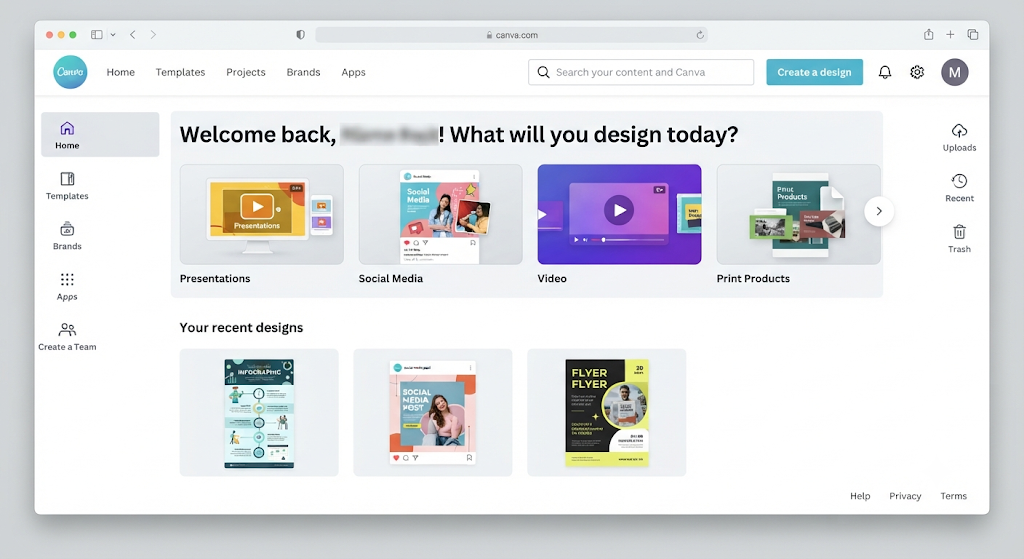
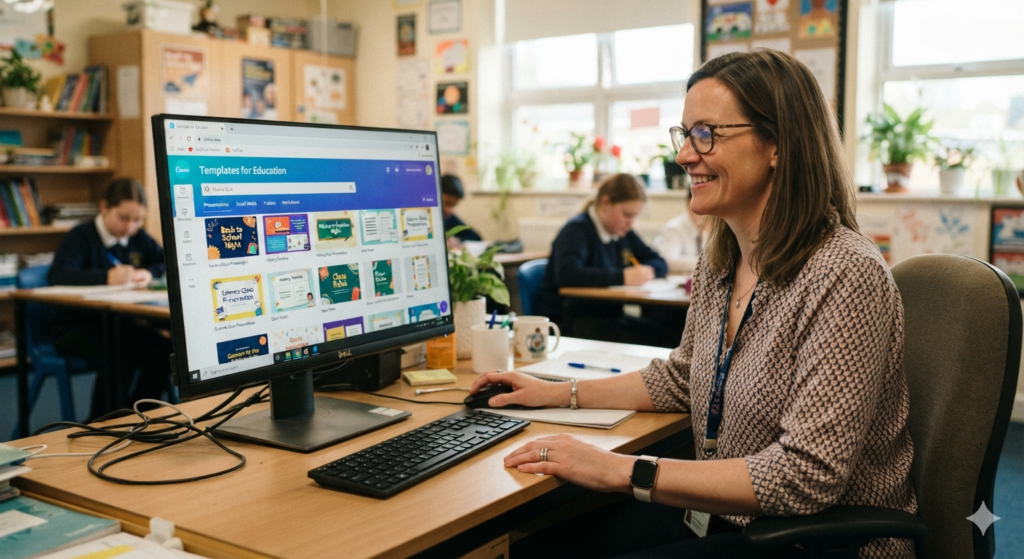
At the top of your Canva home screen, you’ll see a search bar. Simply type what you need for example, “kindergarten worksheet” or “classroom poster” and Canva will show you dozens of ready-made designs.
Step 7: Save Your Projects
Canva automatically saves your work as you go, just like Google Docs. Every design you create is stored in your Projects folder, so you can come back to it any time, even months later, and keep editing.
Tip for beginners: Don’t worry about “messing something up.” Canva keeps a history of every change, so you can always undo and go back to an earlier version.
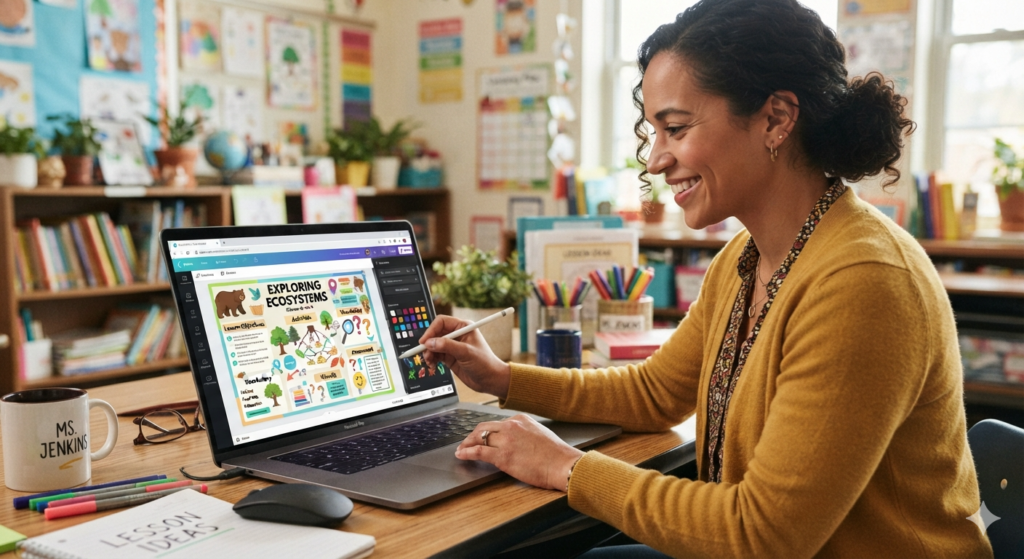
2. How to Create Lesson Plans in Canva
Canva isn’t just for pretty posters it’s also a fantastic tool for Canva lesson plans that are clear, organized, and easy to follow (both for you and for anyone covering your class, like a substitute teacher).
Step-by-Step: Building a Lesson Plan
- Open Canva and log into your account.
- Search for lesson plan templates using the search bar type “lesson plan template.”
- Select a template that fits your subject or grade level. Look for one with sections you’ll actually use, like objectives, materials, and activities.
- Change the colors to match your classroom theme or subject (for example, green for science, blue for math).
- Add your objectives — write in simple language what students should learn by the end of the lesson.
- Insert your activities, listing each step of the lesson in order, from warm-up to wrap-up.
- Add images or icons next to each activity so it’s easy to scan at a glance (a little pencil icon for writing tasks, a clock for timed activities, and so on).
- Save the file Canva does this automatically, but you can also click “File” and “Save” to be sure.
- Download the file as a PDF by clicking “Share” and then “Download.”
- Print the document, or share it digitally with a co-teacher, teaching assistant, or substitute. Lesson Plan guide
A Practical Example
Imagine you’re teaching a lesson on the water cycle for second grade. You could search “science lesson plan template,” pick a design with a fun cloud icon, add your objective (“Students will be able to explain the three stages of the water cycle”), list your activities (watch a short video, draw a diagram, complete a worksheet), and add a simple illustration of the water cycle. In about ten minutes, you’ll have a lesson plan that looks like it came from a professional curriculum.
3. How to Design Worksheets in Canva
Canva worksheets are one of the most popular reasons elementary teachers turn to the platform. Here’s how to create the most common types.
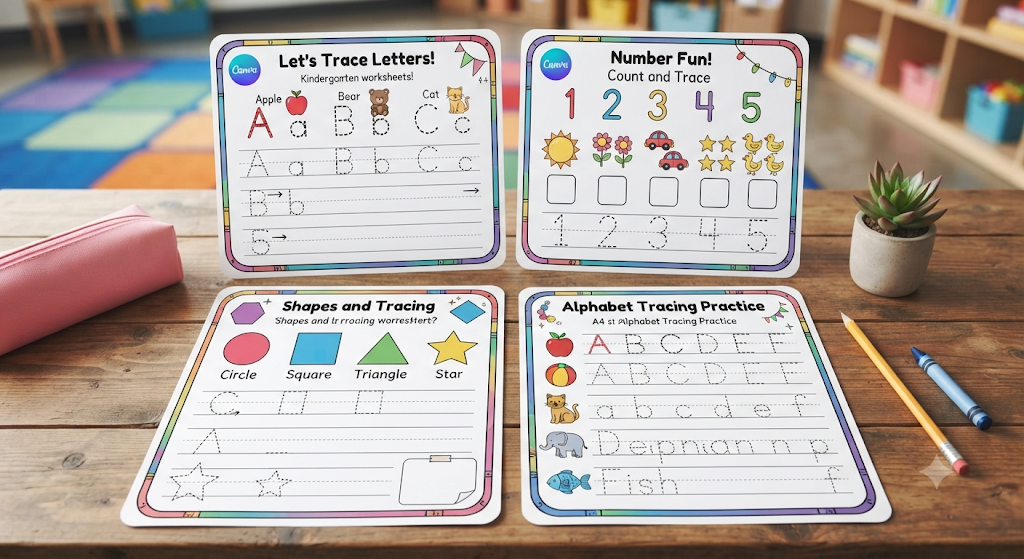
Alphabet Worksheets
- Search “alphabet worksheet” in the Canva search bar.
- Choose a template with large, clear letters.
- Add pictures that start with each letter (apple for A, ball for B).
- Adjust the font size so it’s easy for little hands and eyes.
- Download and print for handwriting practice.
Number Worksheets
- Search “number worksheet” or “counting worksheet.”
- Pick a design with number lines, dots, or objects to count.
- Customize the numbers to match the range your students are learning (1–10, 1–20, and so on).
- Add cute icons like stars or animals for children to count.
Tracing Activities
- Search “tracing worksheet.”
- Choose templates with dotted letters, numbers, or shapes.
- Use Canva’s text tool to add dotted-style fonts, which are perfect for tracing practice.
- Add arrows showing stroke direction, if your template includes them.
Matching Activities
- Search “matching worksheet.”
- Select a two-column layout template.
- Add images or words on each side that students need to match with a line.
- Great for vocabulary, shapes-and-names, or uppercase-to-lowercase letter matching.
Coloring Pages
- Search “coloring page” inside Canva.
- Pick a simple black-and-white outline (animals, shapes, or seasonal themes work great).
- Add your classroom name or a fun title at the top.
- Download and print instant coloring sheets for early finishers or indoor recess.
4. How to Create Flash Cards in Canva
Canva flash cards are quick to design and can be reused year after year.
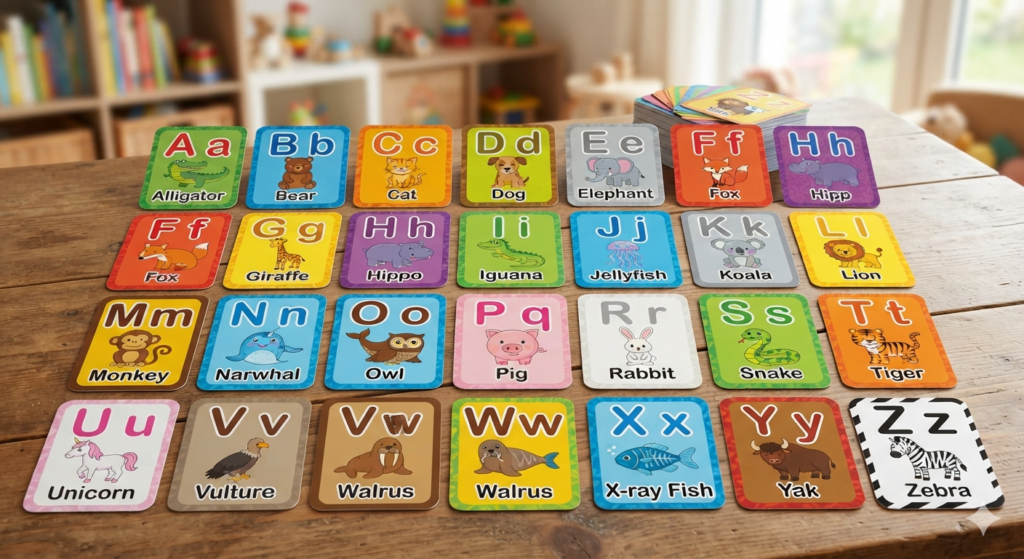
Letter Cards
- Search “flashcard template” or “alphabet flashcards.”
- Choose a template sized for index cards or A4 paper (Canva lets you set custom sizes too).
- Add one big letter per card, both uppercase and lowercase.
- Add a matching picture underneath (A for “apple”).
Number Cards
- Use the same flashcard template style.
- Replace the letters with numbers.
- Add dots or small icons equal to the number shown, so children connect the number to the quantity.
Sight-Word Cards
- Search “sight word flashcards.”
- Type your list of sight words (one word per card).
- Use a bold, simple font that’s easy to read.
- Keep the background plain so the word stands out clearly.
Phonics Cards
- Search “phonics flashcards.”
- Add letter blends or sounds (like “sh,” “ch,” or “th”) along with a picture example.
- Color-code different sound families to help students recognize patterns.
Picture Cards
- Search “picture cards” or “vocabulary cards.”
- Add images with simple labels underneath perfect for vocabulary building, English language learners, or students who benefit from visual supports.
Tip: Once your cards are designed, download them as a PDF, print them on cardstock, and laminate them. A single set can last for several school years.
5. How to Create Classroom Presentations in Canva
Canva presentations bring your lessons to life with color, movement, and even sound.
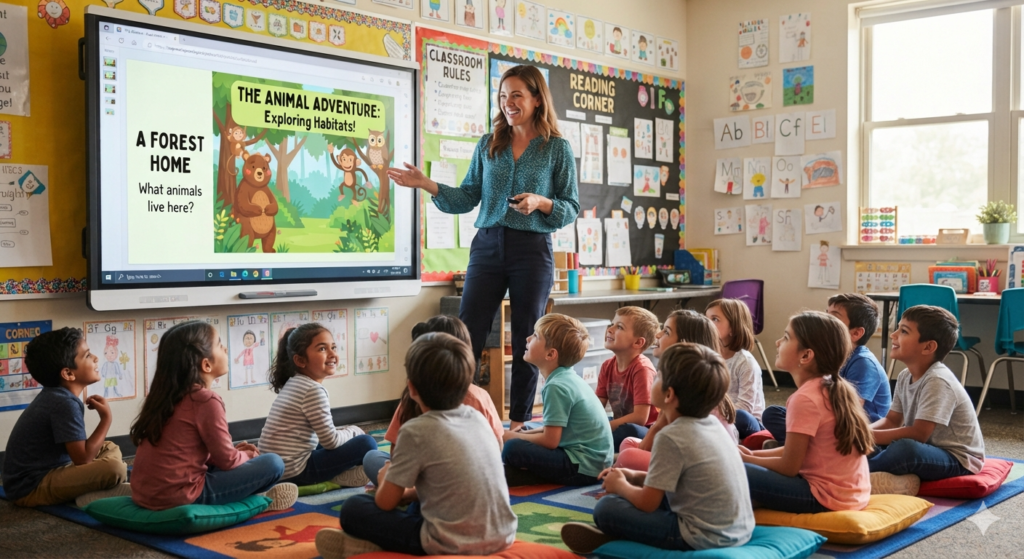
Selecting Templates
Search “classroom presentation” or “education presentation” and choose a template that matches your lesson’s tone playful for younger grades, clean and simple for older elementary students.
Adding Transitions
Click on a slide, then look for the “Transitions” option (usually found by clicking between two slides). Choose a smooth transition style so your slides flow nicely from one to the next without being too distracting.
Inserting Videos
Click “Uploads” on the left-hand menu to add your own video, or search Canva’s built-in video library for short educational clips. Drag the video onto your slide and resize it as needed.
Adding Animations
Select any text or image, then click “Animate” at the top of the screen. Canva offers simple animations like “Fade” or “Rise,” which work great for revealing information one piece at a time helpful for keeping young students focused.
Sharing Presentations
Click “Share” in the top-right corner. You can:
- Download it as a PowerPoint or PDF file
- Get a link to present directly from Canva
- Present live in “Presenter View,” which shows your notes while students see only the slide
6. How to Design Classroom Posters in Canva
Canva classroom decorations can completely transform the look and feel of your room.
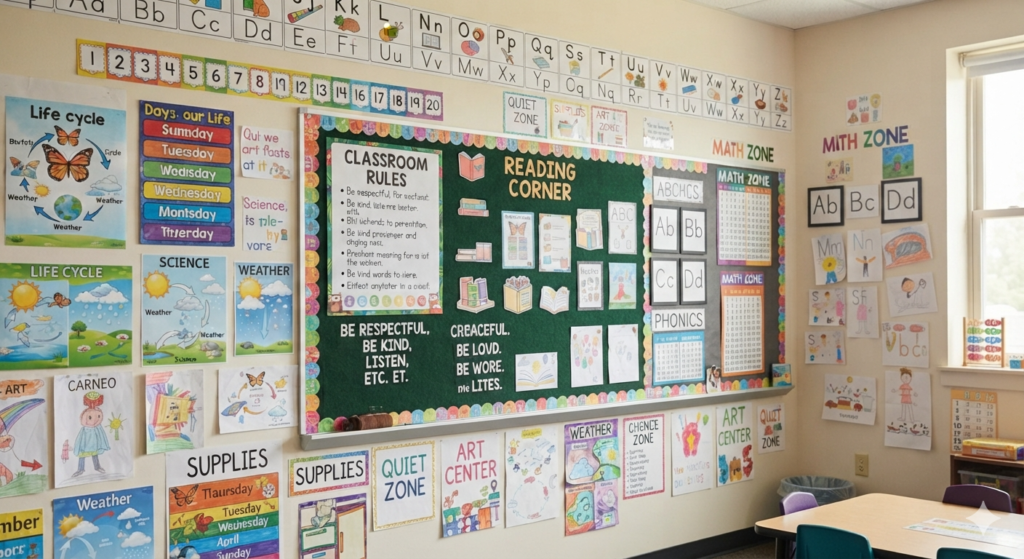
Classroom Rules
Search “classroom rules poster,” choose a design with icons for each rule, and keep your list short (five rules or fewer works best for young learners).
Daily Routines
Search “daily routine chart.” Add small icons for each part of the day (arrival, circle time, lunch, recess, dismissal) so students can follow along visually, even before they can read well.
Behavior Charts
Search “behavior chart template.” Many templates include a color-coded system (green, yellow, red) that’s easy for both you and your students to understand at a glance.
Reading Corner Signs
Search “reading corner poster” to create a welcoming sign for your classroom library, complete with fun book-themed graphics.
Welcome Signs
Search “classroom welcome sign,” personalize it with your name and grade level, and print it large for your door or bulletin board on the first day of school.
7. How to Create Classroom Newsletters in Canva
Keeping parents informed doesn’t have to be stressful. Here’s how to build a newsletter step by step:
- Search “newsletter template” and choose one with a simple, friendly layout.
- Add your classroom name and the date at the top.
- Create sections for what’s happening for example, “This Week’s Learning,” “Important Dates,” and “Reminders.”
- Add a few photos from classroom activities (with permission, following your school’s photo policy).
- Include a small calendar or list of upcoming events.
- Keep the writing short and friendly parents are often reading quickly between other tasks.
- Once finished, click “Share,” then choose to download as a PDF or share a link directly with families.
- If you send newsletters often, save your finished design as a template so you only need to update the text each week rather than starting over.
8. How to Make Certificates and Awards in Canva
Canva certificates are a wonderful way to celebrate student effort and achievement.
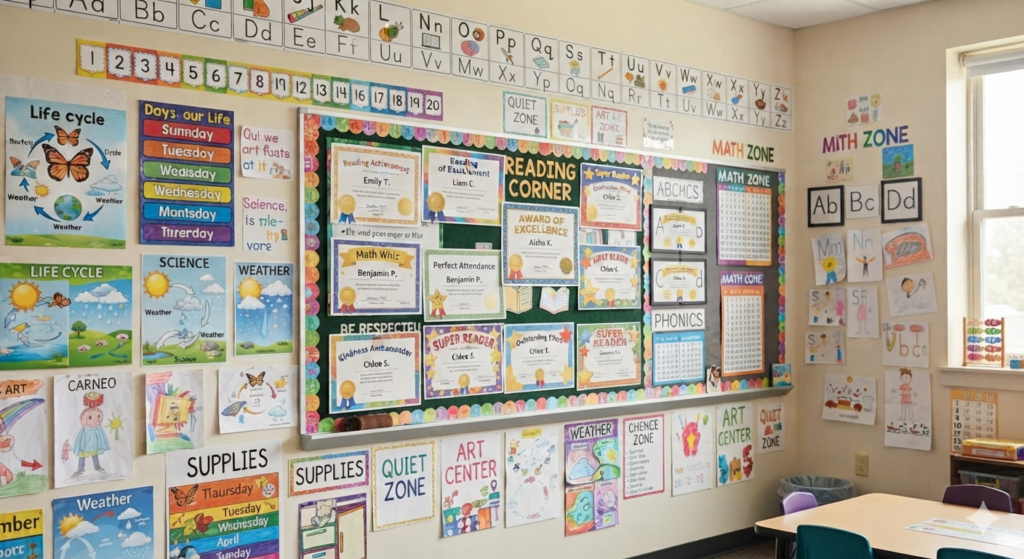
Student of the Week
Search “student of the week certificate,” add the student’s name, and personalize it with a short note about what made them stand out that week.
Attendance Awards
Search “attendance award,” and use it to celebrate students who show up ready to learn great for building positive habits.
Reading Awards
Search “reading award certificate” to celebrate milestones, like finishing a certain number of books or reaching a new reading level.
Achievement Certificates
Search “achievement certificate” for general accomplishments finishing a big project, improving in math, or showing kindness to classmates.
Tip: Create a batch of certificates at the start of the year with blank name fields, so you can quickly fill them in whenever a student earns one no need to design a new one every time.
9. How to Create Classroom Schedules in Canva
A clear schedule helps young students know what to expect, which reduces anxiety and behavior issues.
Daily Timetable
Search “daily schedule template,” list each part of your day in order, and add simple icons or clock times next to each activity.
Visual Schedule
Search “visual schedule” for a picture-based version, which is especially helpful for pre-readers, English language learners, and students who benefit from extra visual support.
Weekly Planner
Search “weekly planner template” to map out your whole week at a glance — useful for both your own planning and for posting a “week ahead” chart for older elementary students.
10. How to Design Labels and Name Tags in Canva
Organizing your classroom is so much easier with clear, matching labels.
- Search “classroom labels” or “name tags” in Canva.
- Choose a template style that matches your classroom theme or color scheme.
- Use the “Bulk Create” feature (found under Apps) if you need many labels with different names simply upload a spreadsheet of student names, and Canva will generate a full set automatically.
- Add small icons to help non-readers recognize their own labels (a star, a fish, a sun).
- Download all labels as one PDF file.
- Print on sticker paper or regular paper, then laminate for durability.
Use this same method for cubby labels, book bin labels, supply labels, and desk name tags.
11. How to Create Educational Videos in Canva
Canva isn’t just for printed materials it’s also a simple video editor.
Recording Videos
Click “Create a Design,” then search “video.” You can upload your own recorded clips or use Canva’s built-in webcam recording tool to record yourself explaining a concept directly inside the platform.
Adding Music
Click “Audio” on the left-hand menu and browse Canva’s free, royalty-free music library. Drag a track onto your timeline and trim it to match your video length.
Using Animations
Just like with presentations, you can animate text and images within your video to highlight key points as you speak.
Exporting Files
When you’re finished, click “Share,” then “Download,” and choose MP4 as your file format. You can then upload the video to your classroom learning platform or share it directly with families.
12. How to Create Classroom Stickers in Canva
Digital and printable stickers add a fun, motivating touch to student work.
- Search “sticker” in Canva’s template library.
- Choose fun shapes like stars, smiley faces, or seasonal icons.
- Add short, encouraging text like “Great Job!” or “Super Star!”
- Download your sheet of stickers as a PDF.
- Print on sticker paper and cut them out, or use them digitally on students’ online assignments as a reward.
13. How to Create E-Books and Learning Materials in Canva
Canva makes it surprisingly easy to build simple digital books and learning packets.
- Search “ebook template” or start from a blank document sized for print or digital reading.
- Design each page like a storybook one main idea, a picture, and a short sentence per page.
- Use Canva’s own illustration library for consistent, classroom-friendly artwork.
- Add page numbers to keep things organized.
- Once finished, download as a PDF, or use Canva’s “Flipbook” feature to turn it into an interactive digital book students can read online.
This is a great option for creating custom reading passages, class-made storybooks, or themed learning packets for a specific unit.
14. How to Collaborate With Other Teachers in Canva
Canva makes teamwork simple, whether you’re planning with your grade-level team or sharing resources across a whole school.
Sharing Designs
Click “Share” on any design, then enter a colleague’s email address or generate a link. You can choose whether they can only view the design or also edit it.
Working in Teams
If your school has Canva for Education, you can create a Team, which lets everyone in your grade level or department access shared folders of templates, brand colors, and finished resources no more emailing files back and forth.
Leaving Comments
Click anywhere on a design and select the comment icon to leave a note for a co-teacher, such as “Can you double check this spelling?” This keeps feedback organized directly on the design itself, instead of scattered across emails.
Best Canva Shortcuts That Save Teachers Time
Once you’re comfortable with the basics, these keyboard shortcuts will make you noticeably faster.
| Shortcut | What It Does |
|---|---|
| Ctrl + C | Copy a selected element |
| Ctrl + V | Paste a copied element |
| Ctrl + D | Duplicate a selected element |
| Ctrl + Z | Undo your last action |
| Ctrl + Shift + Z | Redo an action you undid |
| Ctrl + G | Group multiple selected elements together |
| Ctrl + P | Print your design |
| Ctrl + S | Save your project (Canva also autosaves) |
| Delete/Backspace | Remove a selected element |
| Ctrl + A | Select all elements on a page |
| Alt/Option + drag | Duplicate and move an element in one step |
Tip: Learning even three or four of these shortcuts can cut your design time roughly in half.
Common Mistakes Teachers Should Avoid in Canva
Even experienced Canva users fall into these traps. Here’s what to watch for:
- Using too many fonts. Stick to two fonts per design one for headings, one for body text to keep things looking clean and professional.
- Overcrowding the page. Young students (and busy parents) respond best to simple, uncluttered designs. Leave some empty space.
- Forgetting to check spelling. Canva doesn’t always catch typos automatically, so always proofread before printing or sharing.
- Ignoring print settings. Before printing worksheets or posters, check that “Bleed” and paper size match what your printer expects, to avoid cut-off text or images.
- Not saving templates. If you create something you’ll reuse (like a newsletter layout), save it as a personal template instead of rebuilding it from scratch every time.
- Using copyrighted images incorrectly. Stick to Canva’s built-in library or verified free-to-use images, especially for anything shared publicly online.
- Skipping the “Education” account setup. Some teachers miss out on free premium content simply because they never verified their teacher status.
- Not organizing folders. As your design library grows, create folders by subject or month so you can find past work quickly.
Frequently Asked Questions
Is Canva free for teachers?
Yes. Verified K-12 teachers can access Canva for Education completely free, which includes premium templates, images, and tools that other users have to pay for.
Is Canva safe for children?
Canva can be used safely with students when set up correctly through a school account, with teacher oversight and appropriate privacy settings enabled by your school or district.
Can teachers create worksheets in Canva?
Absolutely. Canva includes thousands of worksheet templates covering nearly every elementary subject, from alphabet practice to math and science activities.
Can students use Canva too?
Yes, many schools set up Canva for Education student accounts, allowing children to create their own projects, presentations, and assignments under teacher supervision.
Do I need design experience to use Canva?
Not at all. Canva is built for beginners. If you can drag, click, and type, you can create professional-looking classroom materials.
Can I use Canva on my phone or tablet?
Yes, Canva has a mobile app for both phones and tablets, so you can design or edit materials even when you’re away from your computer.
How much does Canva cost if I’m not eligible for the free education plan?
Canva offers a free basic plan for anyone, plus an optional paid “Canva Pro” plan with extra features. However, most classroom teachers qualify for the free education version.
Conclusion
Canva has quietly become one of the most valuable tools in an elementary teacher’s toolkit not because it’s flashy, but because it saves something teachers never have enough of: time. From Canva lesson plans and Canva worksheets to flash cards, presentations, certificates, and classroom decorations, this single platform can replace a dozen different tools you might currently be juggling.
The best way to get comfortable is simply to open Canva and start exploring. Try designing one small thing this week a welcome sign, a set of flash cards, or next week’s newsletter. Once you see how quickly a polished, classroom-ready design comes together, it’s hard to imagine going back to the old way of doing things.